Setup Cursor with Python & Django | Step-by-Step Beginner Guide
Objective: Students will install all necessary tools, configure their environment, and learn AI coding basics to be ready to build a website from lesson 2 onward.
Build Websites Fast with AI - Everyone Can Do It
AI is changing the way the world builds websites and apps. You don't need to be a programmer — just describe what you want, and AI can turn it into a working website in hours.
What AI does
Figures out exactly what pages and features your website needs
Writes all the words and builds every page for you
Makes sure buttons, sign-ups, and purchases actually work
Reviews everything and walks you through going live
Why it matters
Faster: days instead of weeks
Cheaper: less repetitive work
Anyone can create: just give instructions in plain language
Real-world proof: Google now uses AI to write 25% of its new code, helping engineers build products faster.
Watch here: How to elevate software development with AI-assisted coding
AI is not the future — it's already here, helping people and companies all over the world build websites and software faster, smarter, and easier.
Install Cursor On Your System
Cursor AI is a tool that runs on Windows, Mac, or Linux. Here's how to set it up.
Step 1 — Go to the official website:
-
Visit https://www.cursor.so
-
Click "Download" for your operating system (Windows, Mac, or Linux)
Step 2 — Install the application:
- On Windows: Run the .exe file and follow the instructions
- On Mac: Open the .dmg file and drag Cursor to Applications
- On Linux: Follow the instructions for your distro, usually a .deb or .AppImage file
Step 3 — Sign in:
- Open Cursor and sign in using Google, GitHub, or email
Main Interface
-
The Text Box

This is where you type your prompt or command.
The placeholder text says:
Plan, @ for context, / for commands
Plan: You can tell the AI what kind of task or project you want to do.
@ for context: Add extra context to help AI understand your project better.
/ for commands: Use built-in commands to trigger actions like generating code, creating files, or running tasks.
-
AI Assistant
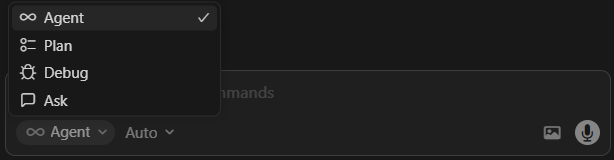
Agent (∞ Agent) – The AI can act autonomously, make decisions, and perform multi-step tasks on your behalf.
Plan – The AI focuses on creating a structured plan or step-by-step approach.
Debug – The AI helps identify and fix errors, like in code or logic.
Ask – The AI only answers your questions directly, without doing extra planning or actions.
-
Inline AI Response Panel
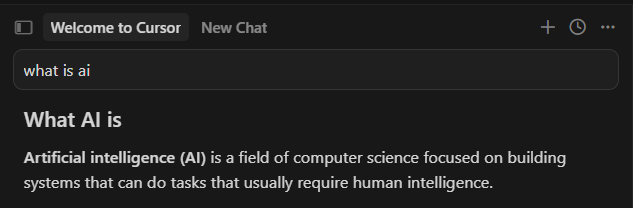
- It reads your prompt
- It generates a quick AI answer
- It shows it instantly inside the editor
- It helps you understand without opening chat
-
AI Code Changes Preview
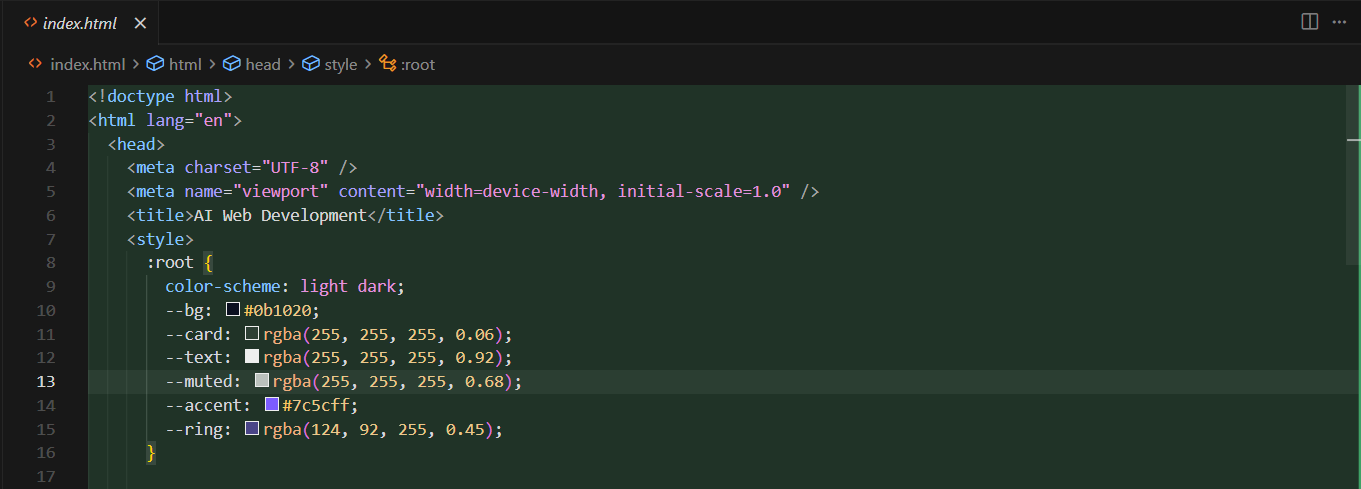
- Shows the changes made by Cursor AI in your code, letting you review, accept, or reject them before applying.
-
Terminal

In Cursor, the terminal is where you run commands to control and execute your code.
For example: python --version
Shows the installed Python version on your system
Enjoying This Lesson?
Your support helps create more comprehensive courses and lessons like this one. Help me build better learning experiences for everyone.
Support Awashyak